
Google AI Studio tutorial: extract invoice data with structured output, then check it with code

Reading invoices is one of the first jobs people hand to an AI model, and for good reason: the documents are repetitive, the fields are known, and typing them over is nobody's favorite task. The part that usually goes wrong is what happens next. A model that reads an invoice well is not the same thing as a process that can be trusted with one.
In this tutorial we build a small invoice checker in Google AI Studio and take it one step further than most walkthroughs do. The model extracts the fields into a fixed JSON structure. A handful of fixed rules then decide whether the invoice is ready for approval or needs a person. We ran every step ourselves on 28 November 2026; the screenshots and results below come from that session.
It is written for two readers: the person who wants to try this in the next twenty minutes, and the manager or architect who needs to know what stands between a demo like this and the finance system.
This is a demonstration with invented data. The supplier, the invoices and the purchase order numbers are fictional, and nothing here is a customer case or a measured accuracy claim.
What we are building
The design has one rule: the model reads, the code decides, a person handles the exceptions.
- Extract. Gemini reads an invoice image and returns the same fields every time, in JSON. JSON is simply a structured text format that other software can read without guessing.
- Check. A set of fixed rules tests the extracted values: is the supplier known, is there an open purchase order, do the numbers add up?
- Route. Invoices that pass go into the normal approval flow. Anything else goes to a person, together with the reason.
The model never approves or rejects anything. That boundary is the point of the exercise.
What you need
- A Google account and aistudio.google.com. We used the free tier and did not need an API key for the steps in the browser. If AI Studio is new to you, start with our introduction to Google AI Studio.
- One or more sample invoices as an image or PDF. Use made-up documents, not real ones. We explain why in the section on data below.
- Nothing else. You can follow every step in the browser. The small script at the end is optional and meant for developers.
Step 1: Make a sample invoice, including a broken one
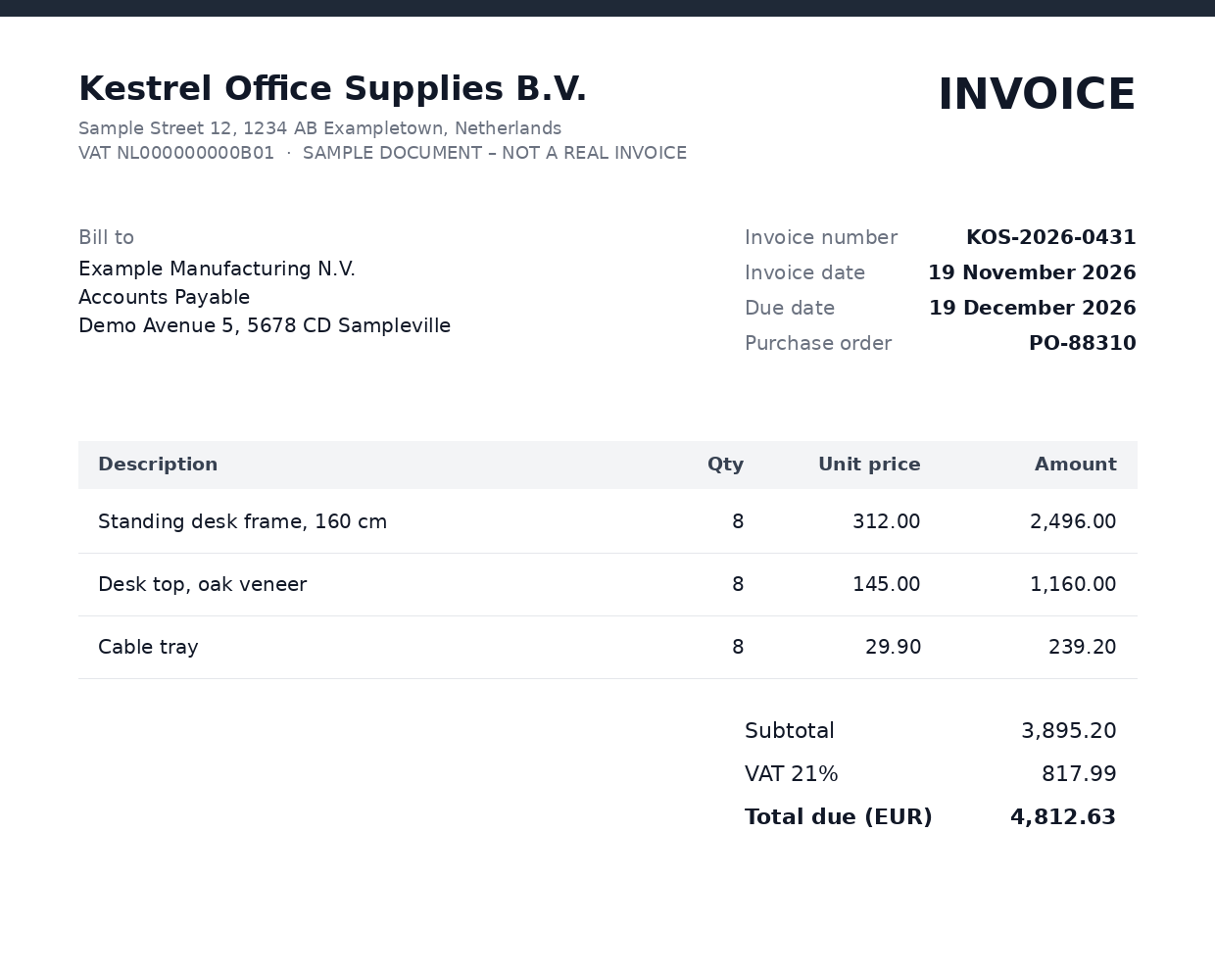
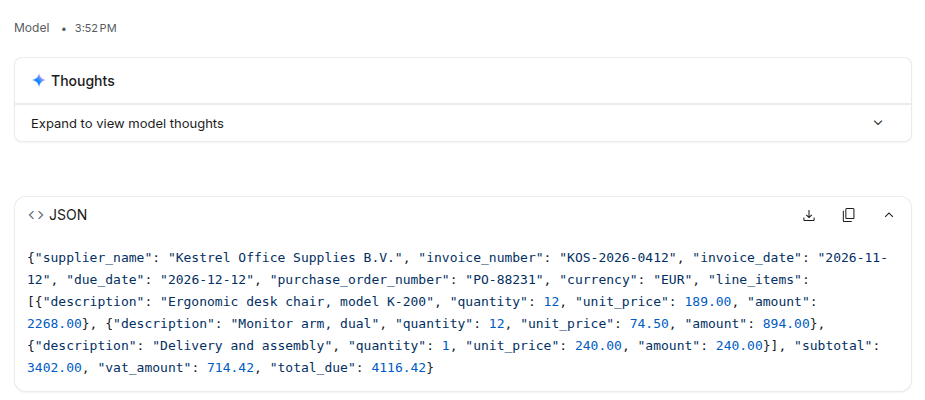
We generated three invoices from a fictional supplier. The first is clean. The second has a total that does not match its own subtotal and VAT. The third has no purchase order number. The awkward cases matter more than the clean one, because they show what the workflow does when the document is wrong.
Step 2: Turn on structured outputs
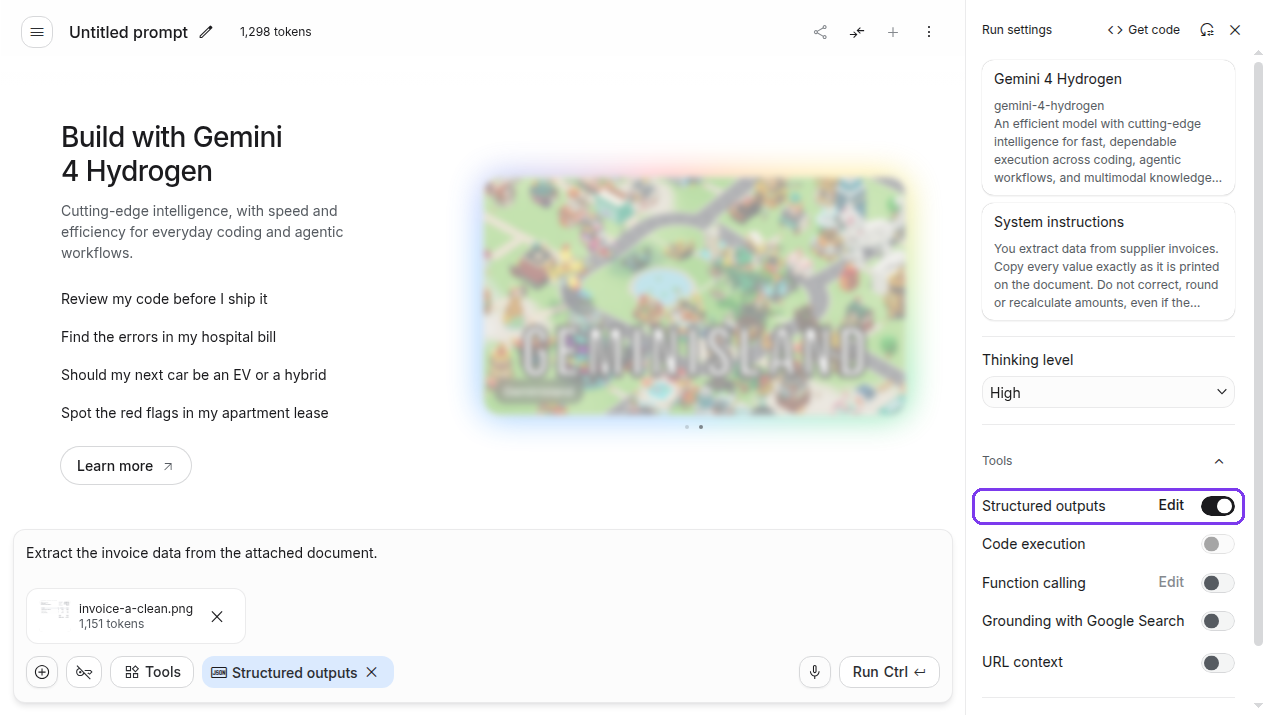
Open a new chat in AI Studio. In the Run settings panel on the right, under Tools, switch on Structured outputs. This tells the model to answer in a JSON structure you define instead of free text.
In our session, Grounding with Google Search was on by default in a new chat. We switched it off first: the model should read the document, not search the web. With structured outputs on, the Code execution switch was greyed out.
Step 3: Describe the fields in a schema
Switching the option on opens an editor. A schema is the list of fields you expect and the type of each one. You can click it together field by field in the Visual Editor, or paste a ready-made version in the Code Editor. Ours asks for these fields:
- Supplier name, invoice number and currency as text
- Invoice date and due date, with the note "ISO 8601 date, YYYY-MM-DD"
- Purchase order number, which is allowed to be empty
- Line items: for each line a description, quantity, unit price and amount
- Subtotal, VAT amount and total due as numbers, with the note "exactly as printed, do not recalculate"
The exact schema is at the bottom of this article, ready to copy.
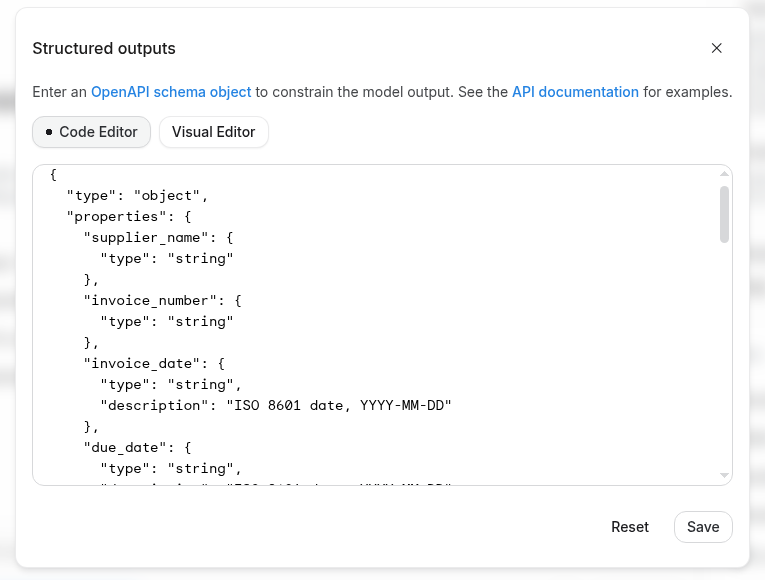
Three choices in this schema do real work:
- Descriptions are instructions. "ISO 8601 date" is why "12 November 2026" came back as
2026-11-12. - A missing value needs somewhere to go. The purchase order field may be
null. Without that, a required text field invites the model to fill the gap with something plausible. The AI Studio editor accepted the OpenAPI-style"nullable": true; Google's API documentation describes the same idea as"type": ["string", "null"], so check which form your code path expects. - The total is copied, not computed. We want what the supplier printed, so that our own code can compare it with the arithmetic.
Step 4: Give the model a narrow job
Click System instructions in the Run settings panel and paste:
You extract data from supplier invoices.
Copy every value exactly as it is printed on the document. Do not correct, round or recalculate amounts, even if the numbers do not add up.
If a field is not printed on the invoice, return null for that field. Never guess a value.
You do not approve, reject or judge the invoice. You only extract.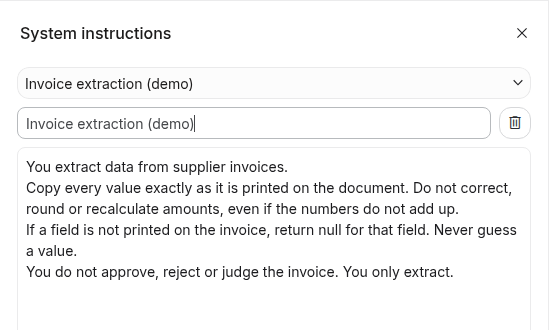
Step 5: Upload the invoice and run
Use the plus button next to the prompt field, choose Upload files and select the invoice. The first time, AI Studio asks you to acknowledge a notice about media uploads; read it, because it also says how uploads may be used. Then type a short prompt such as "Extract the invoice data from the attached document." and press Run.
Step 6: Test the awkward invoices
We ran all three documents in the same chat, with the same settings.
| Invoice | What is wrong with it | What the model returned |
|---|---|---|
| KOS-2026-0412 | Nothing | All fields correct, total 4116.42 |
| KOS-2026-0431 | Printed total is 99.44 too high | The printed total, 4812.63, unchanged |
| KOS-2026-0440 | No purchase order number | "purchase_order_number": null |
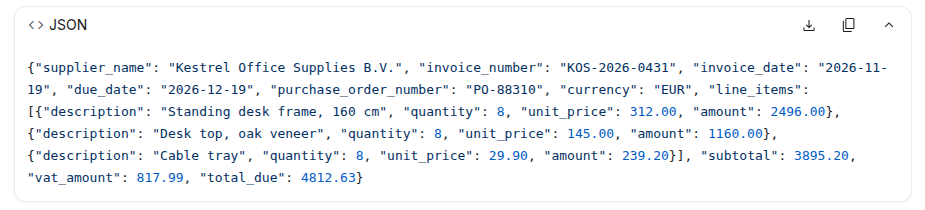
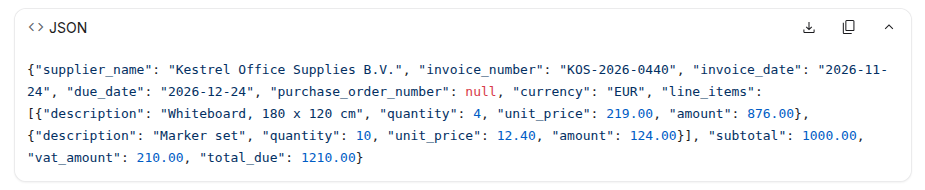
Look at what the second result means. The JSON is perfectly valid and the model did its job, yet the invoice is wrong. Structured output controls the shape of the answer. It says nothing about whether the content is acceptable. Google's own documentation makes the same distinction and advises handling outputs that fit the schema but are incorrect in meaning.
Step 7: Let simple rules make the decision
This is the part that turns a demo into the start of a workflow. The extracted fields go through five checks that have nothing to do with AI. They are fixed rules, the kind a spreadsheet or a finance system can apply:
- Is the supplier on our list of known suppliers?
- Is there a purchase order number, and is that order still open?
- Does quantity times unit price equal the amount on every line?
- Do the lines add up to the subtotal?
- Does subtotal plus VAT equal the printed total?
If every answer is yes, the invoice continues to normal approval. If any answer is no, it goes to a person with the reason attached. We wrote these rules as a short script (included at the bottom for developers). The supplier list and purchase order list in it are stand-ins; in a real setup they would come from your ERP or finance system.
Applied to our three results, the outcome was:
KOS-2026-0412: READY FOR NORMAL APPROVAL
KOS-2026-0431: SEND TO REVIEW
  - Subtotal + VAT is 4713.19, but the invoice says 4812.63
KOS-2026-0440: SEND TO REVIEW
  - No purchase order number on the invoice
Notice who caught the problems. Not the model, and not a second "are you sure?" prompt. Arithmetic and lookups are things ordinary software does perfectly and cheaply, and rules like these can be tested the way any other software is tested. Notice also that the best outcome is "ready for normal approval". The workflow removes typing and flags exceptions; it does not replace the approval your finance process already has.
What this test does and does not show
Three clean, computer-generated images are a small and friendly test. We did not try scans, photos taken at an angle, handwriting, multi-page PDFs, credit notes, other languages or unusual layouts, and real invoice flows contain all of those. Three correct results tell you the approach works in principle. They tell you nothing about an error rate.
Before trusting a setup like this, collect a few hundred of your own historical invoices with known correct values, run them through, and count the mistakes per field. That number, and what a mistake costs you, decides how much human review you need.
From AI Studio to your own code
The Get code button at the top of the Run settings panel turns your session into starter code for the Gemini API.
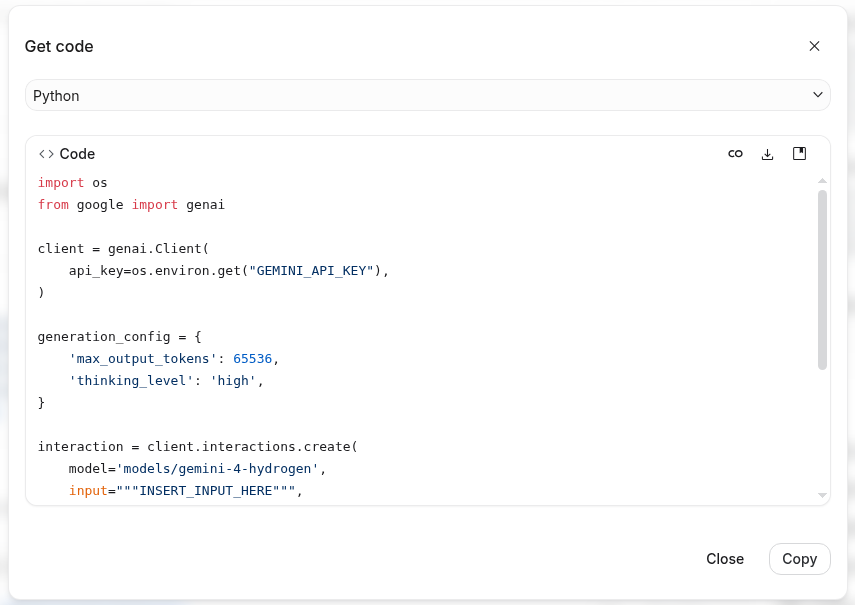
One thing to check: in our export, the Python contained the system instruction and asked for a JSON response, but the schema we had saved was not in it. Without the schema, the API returns JSON in whatever shape the model picks. Compare the exported code with your settings and add the schema yourself, following the structured output documentation.
What changes before this touches real invoices
A browser session with invented documents is a prototype. These are the questions that separate it from something a finance team can rely on.
Where does the data go? Invoices contain supplier names, bank details, prices and sometimes personal data. Google's Gemini API terms draw a line between unpaid and paid services. For unpaid services they state that submitted content is used to improve Google's products and that human reviewers may read it, and they say plainly: "Do not submit sensitive, confidential, or personal information to the Unpaid Services." The same terms say that for users in the European Economic Area, Switzerland and the United Kingdom, the paid-service data rules apply to all services, AI Studio included. Read the current terms with whoever owns privacy and procurement in your organization, and decide on the account, contract and region before a single real document is uploaded.
Who and what has access? The demo ran under one person's Google account. A production workflow needs a service identity with its own, limited permissions, and a clear answer to who may change the prompt, the schema and the rules.
Where do the reference data come from? Our supplier and purchase order lists are two lines in a script. In reality they live in the ERP, and the integration to read them, with the right access and without slowing the system down, is usually more work than the AI part.
What is kept as evidence? For every invoice you want the source document, the extracted JSON, the checks that ran, the outcome, and the model and prompt version that produced it. When a model version changes, you want to rerun your test set before it reaches production.
What happens when something fails? The service can be unavailable, slow or rate-limited, and a document can be unreadable. Each of those needs a defined path, and "silently skipped" should not be one of them.
Who owns it? Someone has to be accountable for the error rate, the rules and the review queue. If that is nobody, the review step becomes a rubber stamp. We wrote more about designing that step in why every AI project needs a human-in-the-loop strategy.
The useful part is the boundary
The model in this tutorial is good at one thing: turning a messy document into tidy fields. We deliberately asked it for nothing else. The judgment sits in five plain rules that anyone on the team can read, question and change, and the exceptions land with a person who sees the reason.
That split is worth keeping when the prototype grows. If a decision can be written as a rule, write the rule. Use the model for the reading, and keep the approval where it already belongs.
If you are weighing a workflow like this against your own finance or ERP landscape, that is the kind of question we help with.
For developers: the schema and the script
Everything above works without this section. If you want to reproduce the test exactly, this is the schema we pasted into the Code Editor in step 3:
{
  "type": "object",
  "properties": {
    "supplier_name": { "type": "string" },
    "invoice_number": { "type": "string" },
    "invoice_date": { "type": "string", "description": "ISO 8601 date, YYYY-MM-DD" },
    "due_date": { "type": "string", "description": "ISO 8601 date, YYYY-MM-DD" },
    "purchase_order_number": {
      "type": "string",
      "nullable": true,
      "description": "Exactly as printed. null if the invoice shows no purchase order number."
    },
    "currency": { "type": "string", "description": "ISO 4217 code, for example EUR" },
    "line_items": {
      "type": "array",
      "items": {
        "type": "object",
        "properties": {
          "description": { "type": "string" },
          "quantity": { "type": "number" },
          "unit_price": { "type": "number" },
          "amount": { "type": "number" }
        },
        "required": ["description", "quantity", "unit_price", "amount"]
      }
    },
    "subtotal": { "type": "number" },
    "vat_amount": { "type": "number" },
    "total_due": {
      "type": "number",
      "description": "The total exactly as printed on the invoice. Do not recalculate."
    }
  },
  "required": ["supplier_name", "invoice_number", "invoice_date", "due_date",
               "purchase_order_number", "currency", "line_items",
               "subtotal", "vat_amount", "total_due"]
}
And this is the script behind the five checks in step 7. Save each JSON result to a file and pass the files to the script.
"""Plain-code checks on the JSON a model extracted from an invoice.

The model only reads the document. Every decision below is ordinary,
testable code. Anything that fails goes to a person; nothing is approved here.
"""
import json
import sys
from decimal import Decimal

TOLERANCE = Decimal("0.01")          # one cent, for rounding
KNOWN_SUPPLIERS = {"Kestrel Office Supplies B.V."}   # stand-in for your vendor master
OPEN_PURCHASE_ORDERS = {"PO-88231", "PO-88310"}      # stand-in for your ERP


def money(value):
    return Decimal(str(value))


def check(invoice):
    problems = []

    if invoice["supplier_name"] not in KNOWN_SUPPLIERS:
        problems.append("Supplier is not in the vendor master")

    po = invoice["purchase_order_number"]
    if po is None:
        problems.append("No purchase order number on the invoice")
    elif po not in OPEN_PURCHASE_ORDERS:
        problems.append(f"Purchase order {po} is not open")

    for line in invoice["line_items"]:
        expected = money(line["quantity"]) * money(line["unit_price"])
        if abs(expected - money(line["amount"])) > TOLERANCE:
            problems.append(f"Line '{line['description']}' does not multiply out")

    line_sum = sum(money(line["amount"]) for line in invoice["line_items"])
    if abs(line_sum - money(invoice["subtotal"])) > TOLERANCE:
        problems.append("Line items do not add up to the subtotal")

    expected_total = money(invoice["subtotal"]) + money(invoice["vat_amount"])
    if abs(expected_total - money(invoice["total_due"])) > TOLERANCE:
        problems.append(
            f"Subtotal + VAT is {expected_total}, but the invoice says {money(invoice['total_due'])}"
        )

    return problems


if __name__ == "__main__":
    for path in sys.argv[1:]:
        with open(path) as handle:
            invoice = json.load(handle)
        problems = check(invoice)
        status = "SEND TO REVIEW" if problems else "READY FOR NORMAL APPROVAL"
        print(f"{invoice['invoice_number']}: {status}")
        for problem in problems:
            print(f"  - {problem}")
Sources
- Google, Gemini API documentation: Structured outputs
- Google, Gemini API Additional Terms of Service (version effective 23 March 2026, read on 28 November 2026)
- Our own test session in Google AI Studio on 28 November 2026, using the model shown in the interface as Gemini 4 Hydrogen
AI Studio's interface, models and terms change often. Check the official pages for the current state before you build on this.