
Google AI Studio: what it is, what you can build with it, and how to start

Google AI Studio is one of the most complete free tools for building with AI right now, and somehow it still flies under the radar. When people list vibe coding tools, they mention Lovable, Bolt and Cursor, but Google's own tool rarely makes the list. That is a shame, because it deserves a spot near the top. This post covers what it is, what you can build with it, and how to get started.
What is Google AI Studio?
Google AI Studio (aistudio.google.com) is the official web environment for Gemini, Google's family of AI models. It runs entirely in your browser, you sign in with a regular Google account, and it is free to use. No installation, no credit card.
Originally it was mainly a playground for developers: a place to test prompts, compare models, and experiment with settings like temperature and system instructions before using the Gemini API in your own software. That side still exists and is genuinely useful if you want to get serious about prompting. But the reason AI Studio is suddenly showing up everywhere is its Build mode.
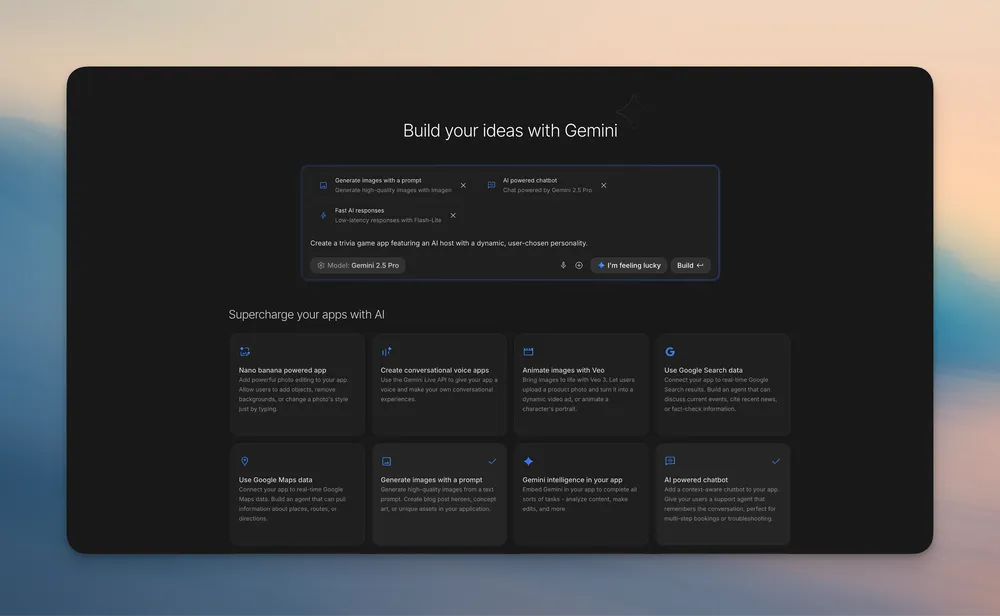
In Build mode you describe the app you want in plain language, and AI Studio generates the complete web app for you. Not just the screens, but the logic behind them and the connection to the Gemini models themselves. You see the result running in a live preview next to the chat, and you make changes by simply continuing the conversation.
The big difference with other build tools
With most vibe coding tools, you build an app first and then have to wire up the AI features yourself: getting API keys, digging through documentation, connecting models together. That is exactly where a lot of people get stuck.
AI Studio flips that around. The AI is already built in. If you ask for an app that analyzes photos, AI Studio connects the right Gemini model to your app on its own. If you want image editing, it automatically hooks up the image model (known internally as Nano Banana). Video generation with Veo, speech, or an app that pulls in current information through Google Search: AI Studio understands which building blocks you need and wires them up for you. You bring the idea, the plumbing is handled.
That is the difference between "a nice looking demo website" and "an app that actually does something with AI". A few examples of what you can realistically build in an evening:
- A photo analysis app. Upload a photo and have the app describe what is in it, flag issues, or turn it into a report.
- A document assistant. Drop in a PDF and ask it questions, as if you were talking to someone who has read the whole thing.
- An image editor. "Remove the background" or "turn this into a painting", with Gemini's image model doing the work.
- A language coach, quiz generator or writing tool. Anything where understanding text is the core is home turf.
Need inspiration? They thought of that
If you find yourself staring at an empty text box, the revamped App Gallery helps: a visual library of example apps you can try instantly, take apart, and remix into something of your own. It is also a good way to learn, because the starter code is right there to read.
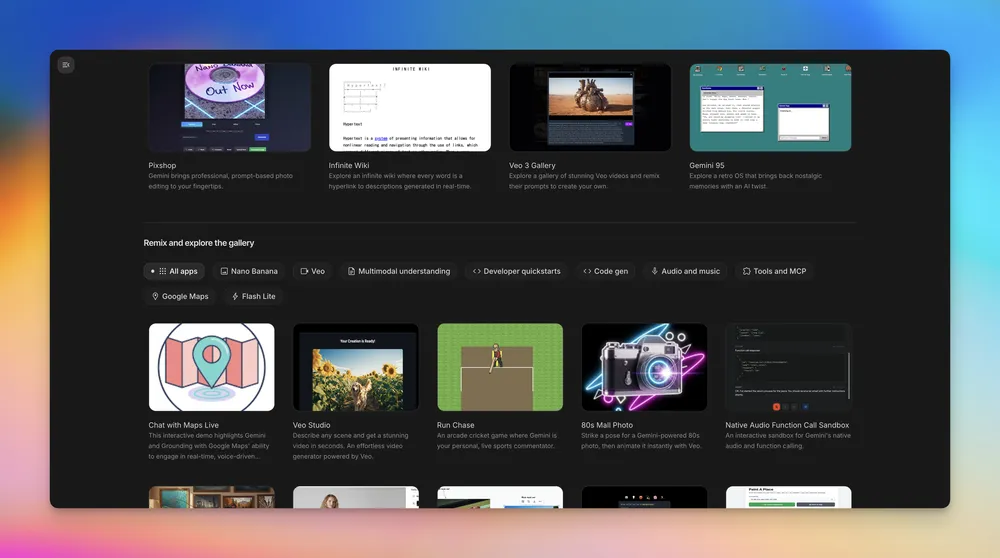
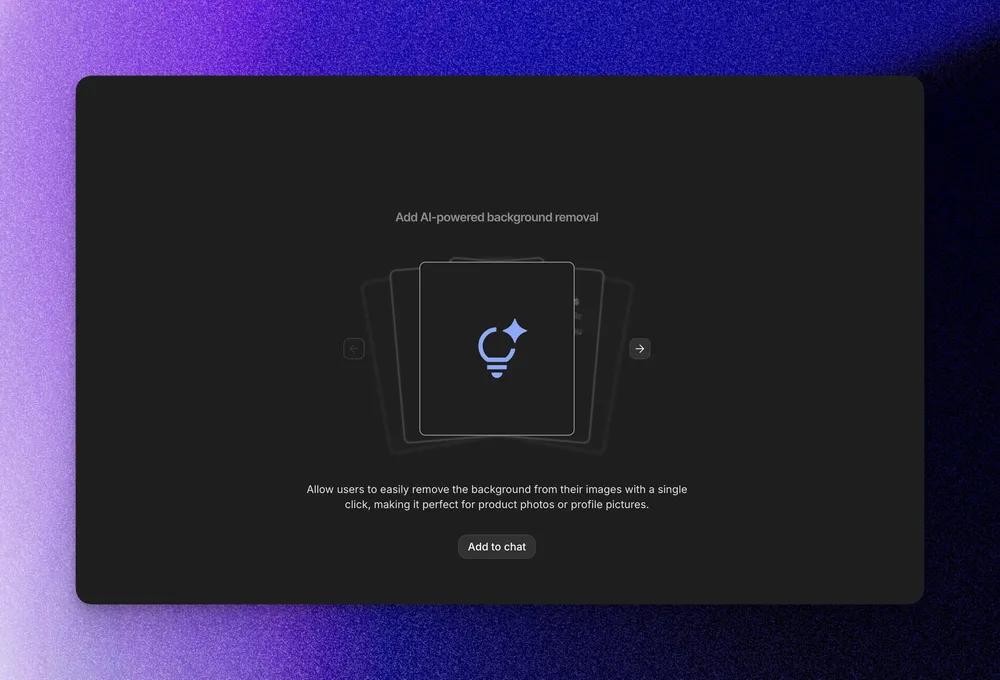
There is even an "I'm Feeling Lucky" button for when you just want to see what happens. And while your app is being generated, you do not get a boring spinner but a brainstorming loading screen that suggests follow-up ideas for your app. A small detail, but it says a lot about how the tool is designed: everything points toward continuing to build.
Make changes by simply pointing
One of the best features is Annotation Mode. Instead of struggling to describe which element you mean ("the second button from the left, no, the other one"), you just click the part of your app you want to change and type what should happen. "Make this button blue." "Animate this image in from the left." Gemini makes the change, and in many cases neatly adjusts the rest of the color scheme to match.
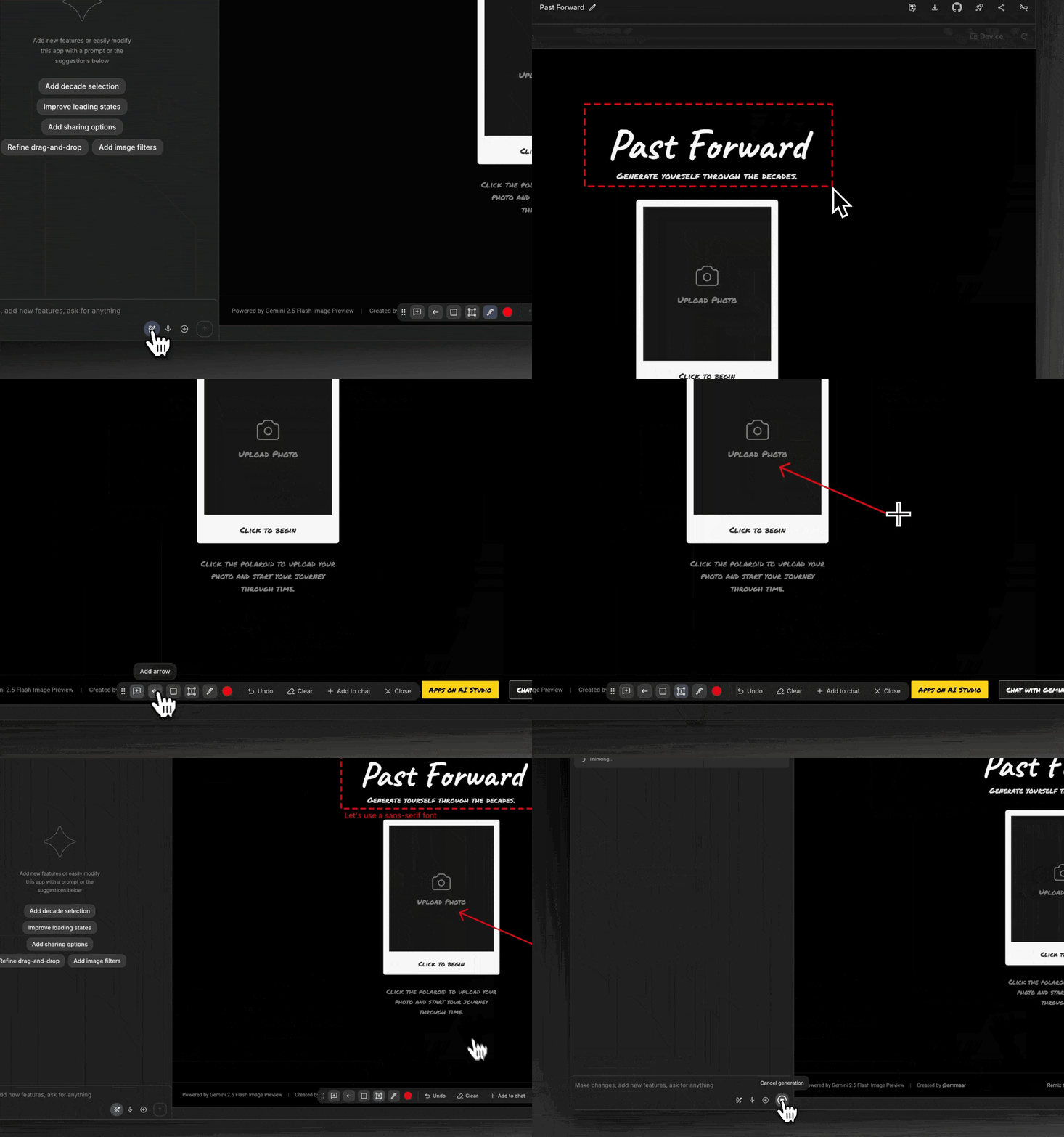
It sounds like a gimmick, but in practice this is where you save the most time. Iterating is half the work of building, and this makes iterating almost effortless.
From prototype to real project
This is another area where AI Studio stands out from many browser builders: you are not locked into the platform. The generated code is simply yours. You can:
- view and download the full source code;
- push your project to a GitHub repository with one click;
- publish your app and share the link, or deploy it to Google Cloud Run if you want to take it further.
If you want to learn programming, this is quietly the biggest value: you build something that works first, then look under the hood to see how it was made. Ask Gemini to explain what a piece of code does. It is one of the best ways to learn.
What does it cost?
The core is free, and not in a stingy way. The free limits are generous enough for real building sessions, not just a quick taste. Google has a strategic interest in getting you familiar with the Gemini ecosystem, and it shows.
If you do burn through your free quota during a long session, you can temporarily connect your own Gemini API key and keep going. Once your free tier renews, AI Studio automatically switches you back. Paid tiers exist mainly for professionals sending a lot of traffic to the API. For experimenting and prototyping you will not need them.
Honest about the limitations
No tool is magic, so a few things to know before you start. The generated apps are web apps; you will not build native mobile apps here. For pixel-perfect, design-driven interfaces, tools like v0 or Lovable are sometimes stronger. AI Studio shines when there needs to be AI functionality inside the app. And as with every AI build tool: a vague prompt gives a vague result. Describe concretely which screens you want, what the user does, and what needs to be saved, and work in small steps. If you get an error message, paste it back into the chat exactly as it is. That is almost always the fastest route to a fix.
How to get started today
- Go to aistudio.google.com/apps and sign in with your Google account.
- Describe your idea, or browse the App Gallery and remix something close to what you have in mind.
- Check the preview and adjust through the chat or Annotation Mode.
- Happy with it? Publish your app, share the link, or export the code to GitHub.
An example prompt to start with:
Build a mobile-friendly web app where I upload a photo.
The app analyzes the photo with Gemini and returns:
- a short description of what is in the picture
- three notable details
- a suggestion for taking a better photo
Keep the design clean and light, with one clear upload button.
Start with just the upload screen; we will add the analysis after that.
The best thing about Google AI Studio is not any single feature, but the feeling that the distance between an idea and a working app has mostly disappeared. You do not need to spend weeks learning to code before you can make something real. You just start, and you learn as you build.
Prices, limits and features change fast in the AI world. Always check the official page of the tool for the current state of things.